Part 4: Automating Outlook using QTP | Working with Outlook Contacts
In this article, you’ll see how you can work with Outlook Contacts. We’ll cover various topics such as how to access Outlook Contacts, how to retrieve properties (such as name, telephone number, email id etc) from an Outlook Contact, how to search for a Contact, how to create a new Contact, delete a Contact etc.
In Outlook, Contact Items are stored in Contacts folder and it is represented by ContactItem object. ContactItem objects contain a variety of contact information, such as people’s street addresses, e-mail addresses, and phone numbers. It also provides a set of methods using which you can access Outlook Contacts. Let’s see few examples on how to work with Outlook Contacts.
Sample Code 1: Access Outlook Contacts and display details of a Contact. Here the script accesses contact items from Contacts folder and displays the details of the first contact.
Dim sMessage
sMessage = ""

Set objOutlook = CreateObject("Outlook.Application")
Set objNamespace = objOutlook.GetNamespace("MAPI")

'Create reference to Contacts Folder
Set oContacts = objNamespace.GetDefaultFolder(10)

'Find all items in the Contacts Folder
Set oAllContacts = oContacts.Items
iCount = oAllContacts.Count
sMessage = "Total Contacts -> " & iCount & vbCrLf & vbCrLf

'Find out different properties of the first contact
If iCount >= 1 Then
	sMessage = sMessage & "Full Name - " & oAllContacts(1).FullName & vbCrLf
	sMessage = sMessage & "Company - " & oAllContacts(1).CompanyName & vbCrLf
	sMessage = sMessage & "Job Title - " & oAllContacts(1).JobTitle & vbCrLf
	sMessage = sMessage & "File As - " & oAllContacts(1).FileAs & vbCrLf
	sMessage = sMessage & "Email - " & oAllContacts(1).Email1Address & vbCrLf
	sMessage = sMessage & "Display As - " & oAllContacts(1).Email1DisplayName & vbCrLf
	sMessage = sMessage & "Web Page - " & oAllContacts(1).WebPage & vbCrLf
End If
'Display the contact properties
msgbox sMessage
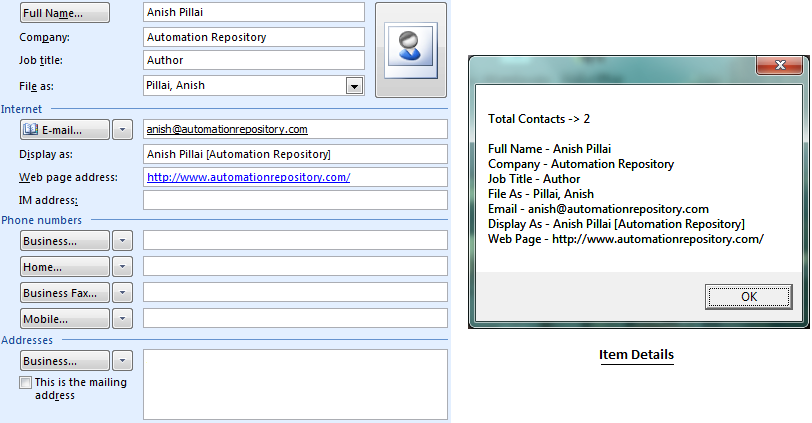
Access Outlook Contact Details
Sample Code 2: Create a new Outlook Contact. This example creates a new Outlook Contact and displays it.
Dim olContactItem
'olContactItem is Referenced by Value 2
olContactItem = 2

Set objOutlook = CreateObject("Outlook.Application")
Set oNewContact = objOutlook.CreateItem(2)

'Set Properties for the new Contact
oNewContact.FirstName = "First"
oNewContact.LastName = "Last"
oNewContact.Email1Address = "first@email.com"
oNewContact.CustomerID = "123456"
oNewContact.PrimaryTelephoneNumber = "(91)0000000000"
oNewContact.MailingAddressStreet = "Street"
oNewContact.MailingAddressCity = "City"
oNewContact.MailingAddressState = "State"

'Save details and display
oNewContact.Save
oNewContact.Display
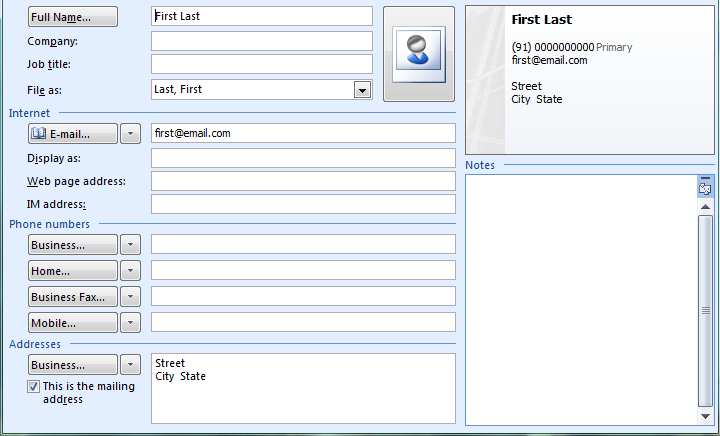
Create New Outlook Contact
Sample Code 3: Copy an Existing Outlook Contact. This example searches for a contact with a specific mail id and then creates a copy of the same.
Dim iCount, objReturnVal

Set objOutlook = CreateObject("Outlook.Application")
Set objNamespace = objOutlook.GetNamespace("MAPI")

'Create reference to Contacts Folder
Set oContacts = objNamespace.GetDefaultFolder(10)

'Find all items in the Contacts Folder
Set oAllContacts = oContacts.Items
iCount = oAllContacts.Count

'Copy an existing contact
For i=1 to iCount
  If oAllContacts(i).Email1Address = "abc@email.com" Then
    'objReturnVal is the object that contains the copied Contact
    Set objReturnVal = 	oAllContacts(i).Copy
    Exit For
  End If
Next

'Display Results
msgbox "Contact Copied. Full Name -> " & objReturnVal.FullName
Sample Code 4: Delete an Outlook Contact. This example deletes an Outlook Contact based on a specific criteria
Set objOutlook = CreateObject("Outlook.Application")
Set objNamespace = objOutlook.GetNamespace("MAPI")

'Create reference to Contacts Folder
Set oContacts = objNamespace.GetDefaultFolder(10)

'Find all items in the Contacts Folder
Set oAllContacts = oContacts.Items
iCount = oAllContacts.Count

For i = 1 to iCount
  If oAllContacts(i).Email1Address = "abc@email.com" Then
    oAllContacts(i).Delete
    Exit For
  End If
Next
If you feel that we have missed out any important concept, or if you want any other topic to be covered here, please leave a comment or just drop in a mail to us. We’ll be more than happy to work on it.
If you enjoyed this article, you can join our blog to get new posts delivered directly in your inbox.